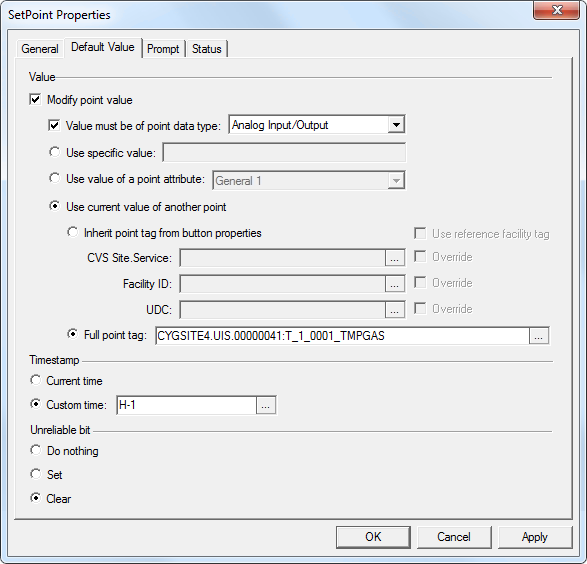
The Default Value page is where you can configure the default value to send for the SetPoint operation. The default value for the target point can be specified explicitly, retrieved from the current value of another point, or retrieved from a point attribute of the target point. The default value can also be limited to a particular point data type. Note that the SetPoint operation will fail if the value being sent doesn’t resolve to the correct point data type.
If retrieving the current value of another point, you can inherit some or all of the point identifier properties from the button properties or from a reference facility, or use point identifier properties to form a fully qualified point tag. If the button is on a templated screen, use just the UDC to identify the point.
Click the following image to see an enlarged sample Default Value page:
The properties for each section or button on this page are described below.
The following table lists and describes Default Value page properties.
| Property | Description |
|---|---|
|
Indicates that the value for the target point will be modified. If unchecked the prompt will indicate that the point value cannot be set. |
|
|
Value must be of point data type |
Click to limit the default value to one of the following point data types:
Note: Analog prompt settings can only be used with a target point whose point data type is analog. |
|
Value |
Indicate the default value to be sent for the SetPoint operation. Select from one of the following three options: |
|
Use specific value |
Click to use a static value and then specify the value to be written. This is the default option for the button. |
|
Use value of a point attribute |
Click to use a value of a point attribute from the target point and then select the attribute from the drop-down menu. Options include:
|
|
Use current value of another point |
Click to use a current value of another point, and then specify the point tag. The alternate point can be very explicitly defined allowing a templated point tag, inheriting some or all of the point identifier properties from the button properties or from a reference facility. Alternatively a fully qualified point tag may be specified.
|
|
Specify the timestamp to be used when setting a value for a target point. Options include:
|
|
|
Specify how you want to handle the unreliable status bit when setting the value for a target point. Options include:
|
Note: The default value settings are also accessible within a scripting environment via the DefaultValue property.

|
|
|

